Hey there! As a supplier of Shutter Glass, I often get asked about how to pair shutter glasses with a TV. It's actually not as complicated as it might seem at first glance. In this blog post, I'll walk you through the whole process step by step, and also tell you a bit about our awesome Shutter Glass products.
First off, let's understand what shutter glasses are. Shutter glasses are a type of eyewear used mainly for watching 3D content on compatible TVs. They work by synchronizing with the TV to alternately block the left and right lenses in a very fast sequence. This creates the illusion of depth, giving you that immersive 3D viewing experience. You can learn more about our Shutter Glass on our website.
Step 1: Check Compatibility
The very first thing you need to do is make sure your TV is compatible with shutter glasses. Not all TVs support 3D technology, and even among those that do, there are different standards. Most modern smart TVs have 3D capabilities, but it's always a good idea to check the TV's manual or the manufacturer's website. Look for keywords like "3D support" or "active shutter 3D." If your TV doesn't support 3D, unfortunately, you won't be able to pair the shutter glasses.
Step 2: Charge the Shutter Glasses
Once you've confirmed that your TV is 3D - compatible, it's time to charge the shutter glasses. Most shutter glasses are rechargeable, and they usually come with a USB charging cable. Plug the cable into a power source, like a wall adapter or your computer's USB port. Let the glasses charge fully. This might take a couple of hours, depending on the model. A fully - charged pair of glasses will give you a longer viewing time without interruptions.
Step 3: Turn on the 3D Mode on Your TV
After the glasses are charged, turn on your TV and navigate to the settings menu. Look for the "3D" or "3D settings" option. Select it, and you'll usually see a few different 3D modes to choose from, such as "Side - by - Side," "Top - and - Bottom," or "Frame Sequential." The "Frame Sequential" mode is the one typically used with shutter glasses. Select this mode, and your TV will now be ready to display 3D content.
Step 4: Pair the Shutter Glasses with the TV
Now comes the crucial part - pairing the glasses with the TV. Most shutter glasses pair automatically with the TV when you turn them on. Just press the power button on the glasses. You should see a small LED light on the glasses indicating that they're powered on. In some cases, you might need to manually pair them. If so, look for a "Pairing" or "Sync" option in the TV's 3D settings menu. Follow the on - screen instructions to complete the pairing process. It might take a few seconds for the glasses to sync with the TV. Once they're paired, you'll notice that the glasses start to alternate the left and right lenses in sync with the TV's 3D content.
Step 5: Adjust the Settings
After the glasses are paired, you might need to make some adjustments for the best viewing experience. Some shutter glasses allow you to adjust the brightness, contrast, or even the color settings. You can do this using the buttons on the side of the glasses. Also, make sure you're sitting at the right distance from the TV. Generally, a distance of about 6 - 10 feet is ideal for a comfortable 3D viewing experience.
Troubleshooting
Sometimes, things don't go as smoothly as we'd like. Here are some common issues and how to fix them:
- Glasses not syncing: If the glasses aren't syncing with the TV, try turning them off and on again. Also, make sure there are no obstacles between the glasses and the TV. Some objects can interfere with the infrared or Bluetooth signals used for pairing.
- Flickering or blurry image: This could be due to a weak battery in the glasses. Try charging them again. It could also be that the TV's 3D settings aren't configured correctly. Go back to the 3D settings menu on the TV and double - check your selections.
- One eye is darker than the other: This might be because the glasses' calibration is off. Some glasses have a calibration option in their settings. Use this option to adjust the brightness of each lens so that they're equal.
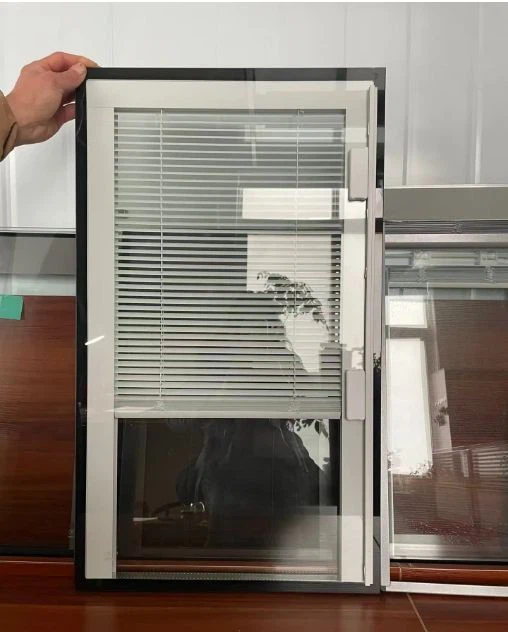
As a Shutter Glass supplier, we also offer other types of glass products, such as Built - in Blinds Insulating Glass and Transparent Louver Glass. These products are great for both residential and commercial applications, offering privacy, energy efficiency, and a modern look.
If you're interested in purchasing our Shutter Glass or any of our other glass products, we'd love to hear from you. Whether you're a retailer looking to stock our products or an end - user in need of high - quality glass, we can provide you with the best solutions. Just reach out to us, and we'll start the conversation about your specific needs. We're committed to providing excellent customer service and top - notch products.
References
- TV manufacturer's manuals
- Shutter glass user guides
So, that's it! Now you know how to pair shutter glasses with a TV. I hope this guide has been helpful to you. If you have any more questions, feel free to ask. Looking forward to doing business with you!